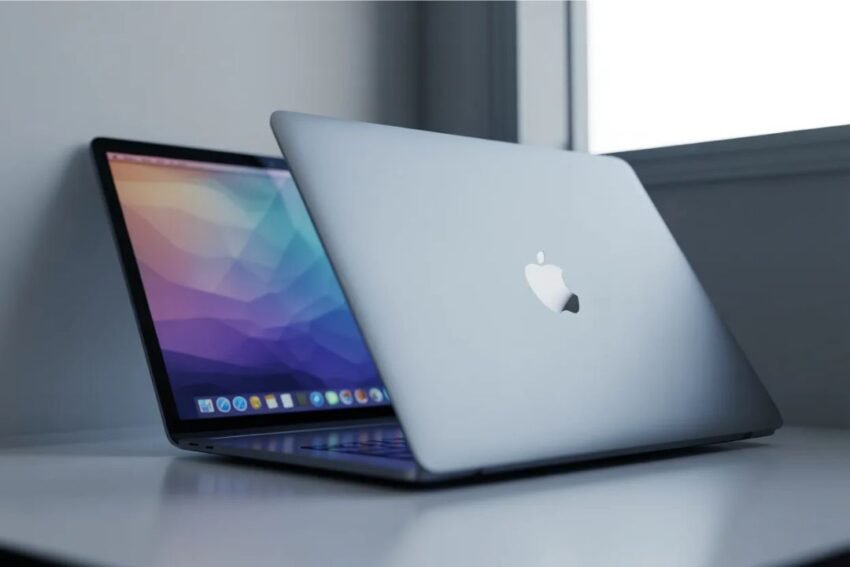
Getting a new MacBook is exciting—but if you’re new to macOS, it can feel a bit overwhelming. This beginner-friendly guide will walk you through everything you need to know to set up your MacBook in 2026, customize important settings, and use it like a pro.
🚀 First-Time MacBook Setup
When you turn on your MacBook for the first time, you’ll go through a simple setup process.
Step-by-Step Setup:
- Choose your language and region
- Connect to Wi-Fi
- Sign in with your Apple ID
- Set up Touch ID (if available)
- Create a user account
- Enable iCloud and security features
👉 Tip: Always sign in with your Apple ID to access apps, backups, and syncing.
⚙️ Essential macOS Settings to Change
Once setup is complete, customize your system for better performance and usability.
🔧 System Settings You Should Adjust:
- Trackpad gestures – Enable tap-to-click and gestures
- Display settings – Adjust brightness and Night Shift
- Dock customization – Remove unused apps
- Battery settings – Enable battery health management
🔒 Privacy & Security
- Turn on Firewall
- Enable FileVault encryption
- Review app permissions
These settings help keep your MacBook secure and efficient.
📂 Understanding the macOS Interface
macOS is clean and user-friendly once you understand the basics.
Key Components:
- Dock – Quick access to apps
- Finder – File manager (like Windows Explorer)
- Menu Bar – System controls at the top
- Spotlight Search – Press
Command + Spaceto search anything
📦 Must-Have Apps for New Mac Users
To get the most out of your MacBook, install essential apps:
Productivity Apps:
- Microsoft Office – Documents, Excel, presentations
- Notion – Notes and organization
Browsers:
- Google Chrome
- Safari
Utility Tools:
- CleanMyMac – System cleanup
- VLC Media Player – Play all video formats
⚡ Essential MacBook Tips for Beginners
⌨️ Keyboard Shortcuts You Must Know
Command + C→ CopyCommand + V→ PasteCommand + Tab→ Switch appsCommand + Space→ Spotlight search
🔋 Battery Optimization Tips
- Reduce screen brightness
- Turn off Bluetooth when not in use
- Use optimized battery charging
☁️ Use iCloud for Backup
With iCloud, you can:
- Store files securely
- Sync photos and contacts
- Backup your entire system
🔄 Keeping Your Mac Updated
Always install the latest macOS updates for:
- Security patches
- New features
- Performance improvements
👉 Go to System Settings > General > Software Update
🧠 Common Beginner Mistakes to Avoid
- Not backing up data
- Ignoring system updates
- Installing unnecessary apps
- Not learning shortcuts
Avoiding these mistakes will save time and improve your experience.
🔮 MacBook Tips for Productivity (2026)
Modern macOS features are designed for efficiency:
- Split screen multitasking
- Focus modes for distraction-free work
- AI-powered search and suggestions
Learning these features can boost your productivity significantly.
🏁 Final Thoughts
Your MacBook is a powerful tool—but only if you know how to use it properly. By following this MacBook beginner guide for 2026, you’ll be able to set up your device, customize settings, and work more efficiently.
Take time to explore, practice shortcuts, and personalize your experience. Within a few days, macOS will feel natural and easy to use.